Add a New User
Previous  Top  Next

IMPORTANT: In order to create a new user you must be logged into the system as an Administrator.


Creating a New User

From the Main LYNX Screen at the top select "Tools" then "Manage Users"
Choose "Add a New User"
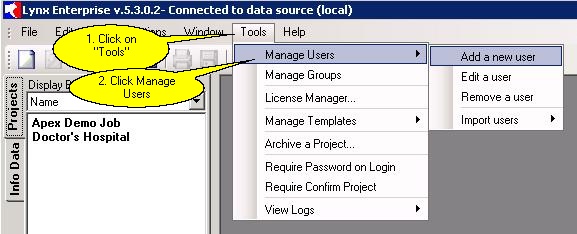
addnewuser


Next type in the required fields*
(User Name, Password, First Name, and Last Name). (If you create the same username as the user's Windows login name then LYNX Enterprise will Authenticate with that and will skip the LYNX login process. The password assigned to the user in LYNX Enterprise does not have to be the user's Windows login password).
It is recommended that you also add a title and email address for the user but it is not required.

(Note: each user name must be unique you can not have duplicate user names. User names and passwords are case sensetive when logging into LYNX.)

The administrator can now choose "Edit" from the top menu and pick any of the below options.

Edit User Rights
Allows the administrator to add or remove individual user rights. (Note: Rights in red are global rights and are not specific to a project or individual user.)
Project Assignments
Allows the administrator to add or remove projects this user has been assigned.
Group Memberships
Allows the administrator to add or remove user from a group.
Edit Another User
Allows the administrator to switch to another user from the Edit a User screen.
Clone Another User
Allows the administrator to clone the rights, group membership, and assigned projects of another user that is already created.

*Required Fields: This information must be filled in before this user can be saved. If the field is left blank you will get an error message indicating that this field must be filled in before you can continue.


Creating an Administrator


To the right of the User Name field you will see a box with "Administrator" at the end. If you wish for a user to access and manage users or groups you will need to make them an administrator by placing a check in the "Administrator" box.

Only make a user an "Administrator" if they manage the LYNX program. It is important to understand that an Administrator has full rights to every feature in the program.


Assigning New User Rights

If you have a network install of LYNX Enterprise you should now assign users their rights. You can choose to assign users rights either individually or through group membership. Follow the below links to instructions on how to assign a user their rights.

To assign user rights indiviudally from the Add a New User menu see "Edit User Rights"
To assign user rights individually from the Edit a User menu see "
Edit User Rights"
To assign user rights through Group Membership see "Adding a User to a Group"